
Need to quickly convert PNG to JPEG online? Our tool provides a fast and free solution to convert your PNG images to the widely compatible JPEG format. Easily change PNG to JPG with our user-friendly online tool, ensuring high image quality and efficient compression. Whether you need to convert PNG to JPG or convert PNG images to JPEG, our image converter simplifies the process.
How to Convert PNG to JPEG Online
Converting PNG to JPEG online is simple and efficient, especially when using the right converter. Our PNG to JPEG converter makes it easy to convert PNG files into the JPEG format without compromising image quality. This process ensures your PNG image maintains its visual appeal while optimizing file size through compression. Many users seek to convert PNG to JPG for better compatibility across different platforms.
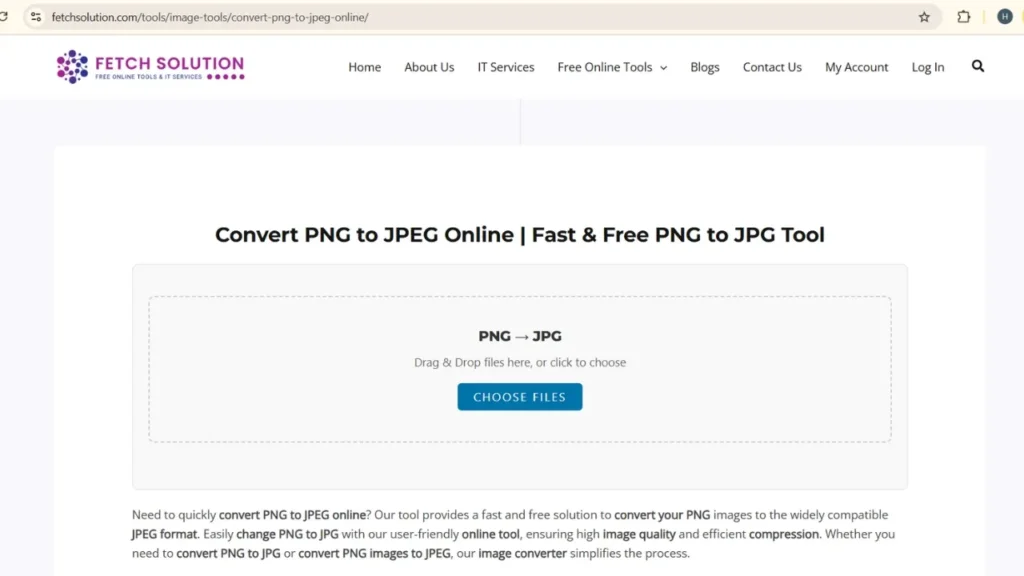
Step-by-Step Guide to Convert PNG to JPEG
Here’s how to convert PNG images to JPEG using our online tool:
- Upload your PNG file to our online PNG to JPEG converter.
- Initiate the conversion process to convert from PNG to the JPEG format.
- Download your converted JPEG image.
This streamlined process ensures your PNG file is quickly transformed into a JPEG file without losing image quality.
Using the Online PNG to JPEG Converter
Our online PNG to JPEG converter offers a seamless experience. The drag and drop feature makes it easy to upload your PNG files. Once uploaded, the converter optimizes the image format, ensuring the converted JPEG maintains excellent image quality with optimized file size. This online tool simplifies the process to change PNG to JPEG, making it accessible to everyone.
Common Issues When Converting PNG Files
When you convert PNG to JPEG, you might encounter issues like image quality loss or unexpected compression artifacts. Ensure your converter allows you to adjust the compression settings to maintain the desired image quality. Sometimes, the file size might not be significantly reduced, depending on the original PNG file. Addressing these issues ensures a smooth conversion process from the PNG format to the JPEG format.
Convert PNG to JPG on Windows 11 (Step-by-Step)
Method 1: Using Windows Photos App
- Open PNG image in Photos App.
- Click Edit & Create → Save As.
- Select JPEG (.jpg) under file type.
- Save your converted JPEG image.
Method 2: Using Microsoft Paint
- Right-click PNG → Open with Paint.
- Click File → Save As.
- Select JPEG Picture.
- Save the file.
PNG to JPEG Converter Features
Our PNG to JPEG converter is packed with features designed to make the conversion process seamless. It offers high image quality retention, efficient compression options, and supports batch conversion for multiple PNG files. Whether you need to convert PNG to JPG or convert your PNG for better compatibility, our online tool provides a reliable solution. It’s the ideal image converter.
Advantages of Using an Online PNG to JPEG Converter
Using an online PNG to JPEG converter offers several advantages. It eliminates the need for software installation, provides quick conversion, and is accessible from any device with an internet connection. Our online tool ensures high image quality, efficient compression, and easy format conversion. With just a few clicks, you can convert PNG images to JPEG or change PNG to JPG.
Understanding the Conversion Process
The conversion process from PNG to JPEG involves re-encoding the image file into the JPEG format. This often includes compression to reduce the file size. While JPEG supports lossy compression, our converter optimizes the settings to minimize image quality loss. Understanding this process helps you appreciate how our converter balances file size and image quality when you convert PNG to JPG.
Supported File Formats and Sizes
Our PNG to JPEG converter primarily supports PNG files for input and outputs in the JPEG format. We accommodate various file sizes to ensure flexibility. Whether you have a small PNG image or a larger one, our converter can handle it. We also support batch conversion, allowing you to convert PNG images to JPEG in bulk, saving you time and effort to change PNG to JPG.
PNG vs JPEG Differences
Image Quality and Compression Differences
When comparing PNG and JPEG, a key difference lies in how each format handles compression. PNG uses lossless compression, maintaining original image quality but often resulting in larger file sizes. JPEG, on the other hand, employs lossy compression, reducing file size by discarding some image data. When you convert images, consider these differences to optimize for your needs.
When to Use PNG and JPEG Formats
Choosing between PNG and JPEG format depends on the image type and intended use. Consider the following guidelines when selecting a format:
- Use PNG for graphics with text, logos, and illustrations where maintaining image quality is crucial.
- Opt for JPEG for photographs and complex images where some compression artifacts are acceptable to achieve a smaller file size.
Choosing the right format will make the image stand out better.
File Size Considerations for PNG and JPEG
File size is a critical factor when deciding between PNG and JPEG. PNG files typically have larger file sizes due to lossless compression, making them less ideal for web use where bandwidth is a concern. JPEG files offer smaller file sizes, making them suitable for web images and quick sharing. When you convert images, consider the balance between file size and image quality.
Comparison Table: PNG vs JPEG vs WebP
| Feature | PNG | JPEG | WebP |
| Compression Type | Lossless | Lossy | Lossy / Lossless |
| File Size | Large | Small | Very Small |
| Best For | Logos, illustrations | Photos | Web images |
| Transparency Support | Yes | No | Yes |
| Ideal Usage | Graphics, branding | Photography | Websites, mobile apps |
Bulk PNG to JPG Conversion Guide
How to Convert Multiple PNG Files to JPG
Converting multiple PNG files to JPG can be streamlined using batch conversion tools. Simply select all the PNG files you wish to convert and use a converter that supports bulk processing. This method saves time and effort compared to converting each PNG file individually, especially when you need to convert PNG images on a larger scale. You could also change PNG by compressing.
Tools for Bulk PNG to JPEG Conversion
Several online tools and software options are available for bulk converting PNG to JPEG. Look for image converter applications that support batch processing, allowing you to convert PNG images to JPEG efficiently. Some popular options include online tools like ours, as well as desktop software that can handle large volumes of files to JPEG quickly and effectively. Using the right tool can change PNG easily.
Benefits of Bulk Conversions
Bulk converting PNG to JPEG offers significant time savings when dealing with numerous PNG files. It simplifies workflow, reduces manual effort, and ensures consistency in image format. Whether you need to convert your PNG for web use or archiving, bulk conversion streamlines the process, making it easier to manage and share a large number of JPEG files. You will be able to easily change PNG to JPG.
File Size, Compression, and Image Quality
Understanding Image Compression Techniques
Image compression techniques are vital when you convert images. Lossy compression, like that used in the JPEG format, reduces file size by discarding some data, which can affect image quality. Lossless compression, used in PNG, maintains full image quality but results in larger file sizes. Choosing the right method depends on your needs when you convert PNG to JPG or handle any image file. Understanding the tradeoffs between image quality and file size is essential for efficient image management.
Impact of Conversion on Image Quality
The conversion from PNG to JPEG can impact image quality due to JPEG’s lossy compression. Each time a JPEG image is saved, some image data is discarded, potentially leading to visible artifacts, especially with repeated edits. When you convert PNG images to JPEG, be mindful of the level of compression applied to minimize image quality loss. Using a high-quality converter can also help preserve detail when you change PNG to JPG.
Choosing the Right Settings for JPEG Format
Selecting the appropriate settings is critical to maintain image quality when saving in the JPEG format. Higher quality settings reduce compression, preserving more detail but resulting in larger file sizes. Lower quality settings increase compression, reducing file size but potentially sacrificing image quality. Experiment to find the optimal balance when you convert your PNG. Adjusting these settings ensures the best compromise between file size and visual fidelity when you change PNG to JPG.
Troubleshooting PNG → JPEG Conversion Issues
Why is my converted JPEG blurry?
A blurry converted JPEG typically results from excessive compression. The JPEG format uses lossy compression, which discards image data to reduce file size. When you convert PNG to JPEG, especially with high compression settings, fine details can be lost, causing blurriness. To avoid this, use a higher quality setting when you convert your image, or consider if the JPEG format is right for your needs.
Why is my PNG not uploading?
If your PNG isn’t uploading, several factors could be at play. The file size might exceed the platform’s upload limit. The file format might not be correctly recognized, or there could be issues with the server. First, ensure your PNG file meets the size and format requirements. If problems persist, try converting the PNG to JPEG, as JPEG is a widely supported format and often results in smaller file sizes.
How to fix JPEG color changes after conversion?
Color shifts in JPEG images post-conversion often occur due to color profile issues. PNG supports a broader range of color information compared to JPEG. When you convert from PNG, some color data may be lost or misinterpreted. To mitigate this, ensure your image converter supports color profile embedding or offers options to preserve color accuracy when you convert PNG to JPG.
FAQs about Converting PNG to JPEG Online
Can I Convert PNG to JPEG for Free?
Yes, you can convert PNG to JPEG for free using various online tools. Our online PNG to JPEG converter provides a fast and efficient way to convert your PNG images without any cost. These free converters often offer basic features to change PNG to JPG while maintaining acceptable image quality. Using a free converter is a convenient way to quickly convert images when you’re on a budget.
What is the Best PNG to JPEG Converter?
Determining the “best” PNG to JPEG converter depends on your specific needs. Look for a converter that balances image quality, file size, and ease of use. Our online tool offers a user-friendly experience with options to adjust compression settings. Consider factors like batch conversion capabilities and additional features when choosing the right image converter for your needs to convert PNG images to JPEG.
How to Ensure High Image Quality When Converting?
To ensure high image quality when converting, choose a converter that allows you to adjust settings carefully. Opt for lower compression levels to retain more detail, especially when exporting to JPEG format. It’s also helpful to use a tool that supports color profile preservation to maintain accurate colors when converting PNG to JPG. Finally, always preview the converted JPEG to check for any noticeable artifacts.
Explore Our Free Image Conversion Tools
Looking for more file format converters? Explore these fast and free tools from Fetch Solution:
JPG to WebP Converter (Online Free)
Convert JPG images into lightweight WebP format for faster website performance.
👉 JPG to WebP Converter
PNG to WebP Converter
Quickly convert PNG files into optimized WebP images without losing quality.
👉 PNG to WebP Converter
HEIC to JPG Converter (Free Online)
Easily convert HEIC photos from iPhones to JPG format for universal compatibility.
👉 HEIC to JPG Converter