
Converting WebP images to JPG can be frustrating—especially when you have dozens or hundreds of WebP files that need to work on older systems, mobile apps, or design software. This guide explains how to convert WebP to JPG, how to batch convert multiple WebP images online, and how to keep high JPG image quality with fast, free tools.
Whether you’re handling a single WebP image or performing a full mass WebP to JPG conversion, the methods below will help you get the job done efficiently.
WebP to JPG Converter Overview
This section offers a general look at what WebP to JPG converters are, including their benefits and a basic understanding of the two image formats, so that you are familiar with image conversion from WebP images to JPG.
What is a WebP to JPG Converter?
A WebP to JPG converter is an online tool or software designed to convert image files from the WebP image format to the JPG format, streamlining the conversion process. This allows users to convert WebP images, optimizing them for compatibility with older systems that may not support WebP.
Benefits of Converting WebP to JPG
Converting WebP to JPG enhances compatibility across different devices and platforms, considering that JPG is a universally accepted image format. This image conversion can be done using an online tool or dedicated software, allowing you to convert multiple WebP. Also, this ensures wider accessibility for your image files, but can affect image quality and file size.
Understanding WebP and JPG Formats
WebP is a modern image format developed by Google that provides superior lossless and lossy compression for images on the web. JPG, or JPEG, is a widely used image format known for its efficient compression, but it may result in a loss of image quality when compressed. Understanding these differences is key to successful WebP to JPG conversion.
How to Convert WebP to JPG
This section details several methods to convert WebP files to JPG format, covering the steps for converting WebP images to JPG using different types of converter software and online tools.
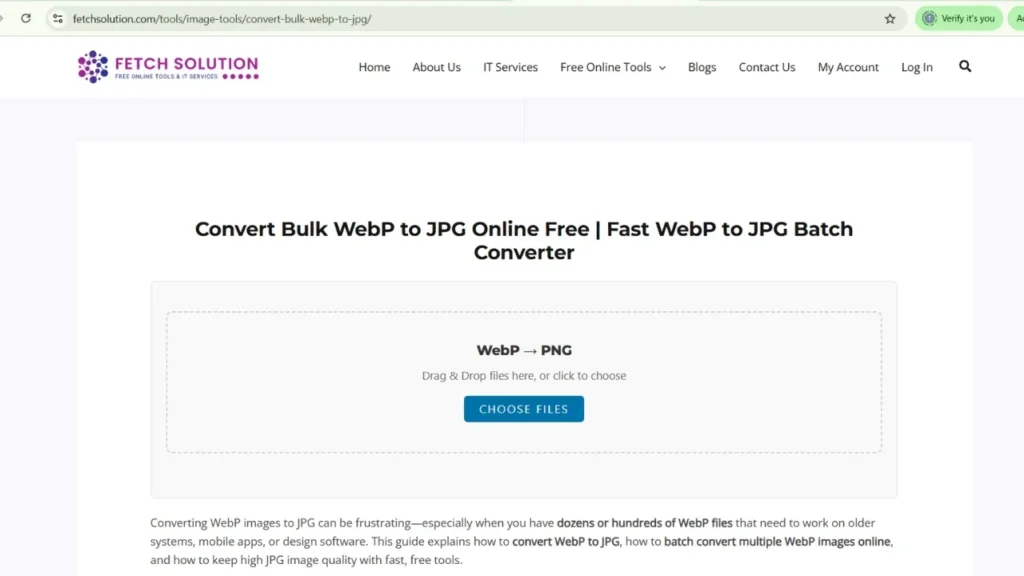
Steps to Convert WebP Files to JPG
Here’s how to convert your WebP files to JPG. The process generally involves a few key steps:
- First, select your WebP image and choose a suitable converter, either online or software-based.
- Next, upload your WebP file, specify JPG as the desired output format, and start the conversion process.
After the conversion, your new JPG image will be ready to download.
Using Desktop Software for Conversion
Desktop software offers a reliable way to convert your WebP to JPG, providing features such as batch convert options and offline functionality. Software converters often provide more control over image quality and conversion settings, allowing you to convert multiple WebP with ease.
Online Image Converter Options
Online image converter options are fast and convenient tools for converting WebP images to JPG format without the need to install any software. These online converter tools typically offer a simple interface where you upload your WebP file, select JPG as the output format, and convert images instantly, often JPG online for free.
Batch Convert / Bulk Conversion Guide
This section describes how to batch convert WebP to JPG, with instructions on how to convert multiple WebP at once. It includes tools for batch conversion and setting up the bulk conversion process.
Why Batch Convert WebP to JPG?
Batch converting WebP to JPG saves time and effort when dealing with numerous image files. Using batch conversion, you can convert multiple WebP files to JPG in a single operation, making it perfect for large image collections that need to be compatible with a wide range of devices and platforms.
Tools for Batch Conversion
Various tools are available for batch conversion of WebP to JPG, including desktop software like XnConvert and online converter options that support batch processing. These tools allow you to convert multiple WebP to JPG online, manage file names, adjust image quality, and output settings for all images simultaneously.
Setting Up Bulk Conversion Processes
Here’s how to set up a bulk conversion process. It involves a few key steps:
- Select a tool that supports batch conversion and upload all your WebP files.
- Set the output format to JPG and adjust any desired image quality or resizing options.
Finally, start the batch conversion to efficiently transform WebP to JPG in bulk.
Online Converter Steps
This section offers detailed steps on using an online WebP to JPG converter. You’ll learn how to find a reliable converter online, use it for fast results, and become familiar with common online conversion features.
Finding a Reliable Online WebP to JPG Converter
When seeking a reliable online WebP to JPG converter, consider factors like security, conversion speed, and the ability to convert images without reducing image quality. Look for converters online that are well-reviewed and offer secure connections to protect your files during upload and download of JPG files.
Using Converter Online for Fast Results
Here’s how to use an online converter for quick results. Make sure to follow these steps:
- Choose a tool with a streamlined interface and quick conversion times.
- Ensure you have a stable internet connection and upload your WebP file.
- Select JPG as the output format, and start the conversion process.
This will quickly transform your WebP images to JPG format.
Common Online Conversion Features
Common online conversion features include the ability to convert images, resize images, and adjust image quality settings. Some converters also offer batch conversion capabilities, allowing you to convert multiple WebP images to JPG simultaneously, ensuring efficient image conversion and management.
File Format Differences
WebP vs JPG: Key Differences
WebP offers superior compression and supports both lossless and lossy compression. JPG, or JPEG, is an older format primarily using lossy compression.
When to Use JPG Over WebP
JPG remains useful when maximum compatibility is required. Older systems and software may not support WebP.
Image Quality Considerations
WebP can maintain better image quality at similar file sizes, making it preferable when image fidelity is paramount if you use a WebP to JPG converter to transform WebP.
Conversion Process Explanation
Understanding the Conversion Mechanism
The conversion process from WebP to JPG involves decompressing the WebP image and re-encoding it into the JPG format. This process includes resampling the image data and applying JPG’s compression algorithms. Different converters may implement these steps differently, affecting the final JPG image quality.
Factors Affecting Conversion Speed
Several factors influence the conversion speed, including the size of the WebP file, the processing power of the converter online, and the chosen compression settings. Batch convert operations may take longer due to the increased number of image files. Ensure that you have a stable internet connection if you are using an online WebP to JPG converter.
Output Quality after Conversion
The output quality after conversion largely depends on the settings used during the conversion process. Higher JPG quality settings retain more detail but result in larger file sizes. Lower settings reduce file size at the expense of image quality; therefore, the output quality can vary when you convert WebP to JPG.
Troubleshooting WebP File Issues
Common Issues When Converting WebP Files
How to Fix WebP File Errors
Common issues when converting WebP files include file corruption, compatibility problems with the converter online, and unexpected errors during the conversion process. These issues can result in failed conversions or poor-quality output when you convert image files.
To fix WebP file errors, first, ensure that the WebP file is not corrupted by trying to open it with different image viewers. If the file is intact, try using a different converter online or updating your existing conversion software. Re-downloading the WebP file may also resolve issues caused by incomplete downloads.
Best Practices for Successful Conversion
For a successful WebP to JPG conversion, always use a reputable converter online, ensure your WebP files are not corrupted, and choose appropriate quality settings for your desired output. Regularly update your conversion tools to benefit from the latest features and bug fixes so you can convert multiple WebP to JPG.
Image Quality + Output Format
Ensuring High-Quality JPG Images
Using a higher quality setting during the converting WebP will minimize compression artifacts and preserve details. Previewing the output image before finalizing the conversion can also help maintain JPG image quality.
Adjusting Compression Settings
Adjusting compression settings is crucial to balance image quality and file size. Lower compression settings result in larger file sizes but retain more detail, while higher settings reduce file size but may introduce noticeable artifacts. Experiment to find the optimal balance for your needs before you transform WebP.
Comparing Output Formats: JPG and PNG
While converting WebP to JPG is common, understanding the alternatives is important. JPG is best for photographs due to its efficient compression, while PNG is better for graphics with sharp lines and text because it offers lossless compression.
Convert Multiple WebP Images
Advantages of Converting Multiple WebP Images
Batch conversion streamlines your workflow and ensures all your image files are in a universally compatible format.
How to Convert Multiple WebP Files Online
To convert multiple WebP files online, first find an online converter that supports batch conversion. Upload your WebP files to the converter online, select JPG as the desired output format, and start the image conversion process. After the conversion is complete, download your converted JPG files, ensuring they are compatible with various platforms and devices, convert multiple WebP easily.
Managing Output Files Efficiently
Efficiently managing output files after converting WebP to JPG involves organizing and storing your newly converted JPG files in a structured manner. Use descriptive file names, create folders for different projects, and consider using a file management system to keep track of your image conversion. This makes it easier to locate and use your converted image files when needed, especially when you convert multiple.
Comparison: JPG vs PNG
| Feature | WebP | JPG |
|---|---|---|
| Compression | Lossy + Lossless | Lossy |
| File Size | Smaller | Larger |
| Transparency | Supported | Not supported |
| Best Use | Websites | General photos |
Key Features of JPG and PNG Formats
JPG (JPEG) uses lossy compression, ideal for photographs. PNG uses lossless compression, preserving image quality.
Best Use Cases for Each Format
JPG is best used for photographs and images where a small file size is crucial, such as web images and social media posts. PNG is better suited for graphics, logos, and images with text, where preserving image quality and sharp details is more important, making it ideal for design projects and archival purposes. If you convert WebP to JPG for web use, consider JPG.
Choose JPG for:
✔ Sharing
✔ Websites
✔ Photo compression
Choose PNG for:
✔ Logos
✔ Text graphics
✔ Transparent images
Which Format to Choose for Your Needs?
Choose JPG for smaller file sizes and photographs. Choose PNG for image quality and graphics. This choice needs to be considered even when you convert your WebP.
Related Tools
Other Image Conversion Tools to Consider
Besides online converters, other image conversion tools to consider include desktop software like Adobe Photoshop, GIMP, and XnConvert. These tools offer more advanced features such as batch conversion, image editing, and precise control over compression settings. Consider these options if you need more than just a simple online WebP to JPG converter.
Using Image Editing Software for Conversion
Image editing software like Adobe Photoshop and GIMP can be used to convert WebP images to JPG format. Open the WebP file in the software, then select “Save As” and choose JPG as the output format. These programs provide additional control over image quality and compression settings during the image conversion process and can convert images with a high level of customization.
Online Resources for Image Format Information
Numerous online resources offer detailed information about image formats, including WebP, JPG, and PNG. Websites like Wikipedia, Adobe’s help pages, and various tech blogs provide in-depth explanations of the characteristics, advantages, and disadvantages of each format. This knowledge can help you make informed decisions about which format best suits your needs for your image conversion project.
FAQs
What is the Best WebP to JPG Converter Online?
The “best” online WebP to JPG converter depends on individual needs, but popular choices include Fetch Solution, CloudConvert, Zamzar, and Convertio. These online converter options offer a balance of ease of use, conversion speed, image quality, and support for batch conversion of multiple WebP to JPG online.
How to Convert WebP to JPG for Free?
You can convert WebP to JPG for free using online converter tools like Fetch Soltuion, OnlineConvertFree, FreeConvert, and iLoveIMG. These platforms allow you to upload your WebP files, convert images, and download the converted JPG files without any cost. However, some converters online may have limitations on file size or the number of conversions per day.
Can I Batch Convert WebP to JPG Online?
Yes, batch conversion is available online. Use tools like Convertio, Zamzar, Fetch Solution and CloudConvert.
Explore Feth Solution more image converting tools Related Tools
Explore more free conversion tools from Fetch Solution: